


ComfyUI workflows for SDXL allow artists and designers to create stunning AI images through node-based interfaces. These customizable workflows leverage Stable Diffusion XL’s capabilities while giving users granular control over the generation process, resulting in higher quality outputs than simpler interfaces.
SDXL ComfyUI Workflow: The Not-So-Secret Weapon of AI Artists
The first time I tried creating AI images, I was… well, let’s just say the results were questionable at best. A mangled mess of hands with too many fingers and faces that looked like they’d been partially melted in a microwave. Not exactly the “stunning artwork” I had in mind.
Then I discovered ComfyUI workflows for SDXL, and suddenly I was creating images that actually made me look like I knew what I was doing. It was like graduating from finger painting to having a digital paintbrush guided by some algorithmic genius who somehow understood what I wanted better than I did myself.
But here’s the thing – when you first look at a ComfyUI workflow, with its maze of nodes and connections, it’s pretty darn intimidating. I literally stared at my screen for 20 minutes thinking “I’ve made a terrible mistake.” But trust me, it’s worth pushing through teh initial confusion.
Let’s break it down…
What Is a SDXL ComfyUI Workflow?
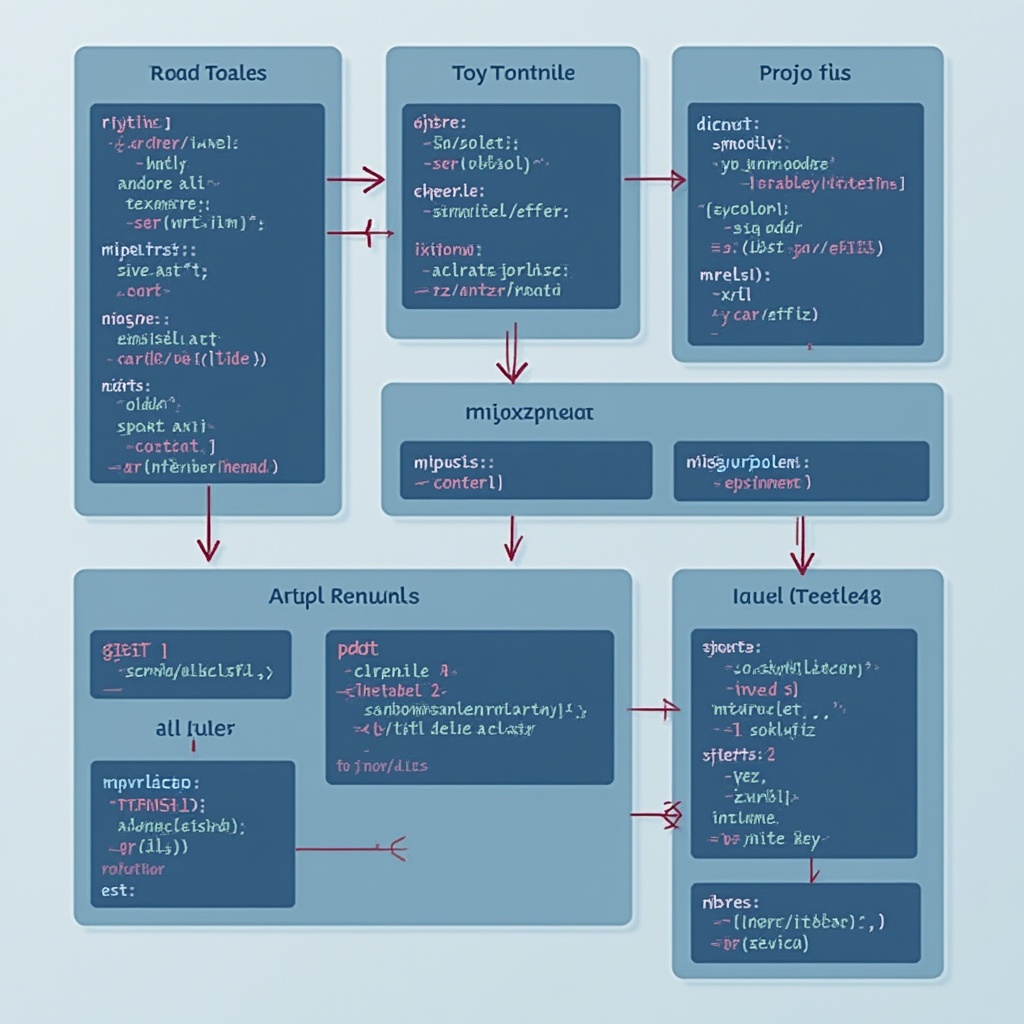
ComfyUI is a node-based interface for creating AI-generated images using Stable Diffusion models – with SDXL (Stable Diffusion XL) being the current gold standard for image quality. Unlike text-based interfaces where you simply enter prompts, ComfyUI gives you visual building blocks (nodes) that you connect together to create custom image generation pipelines.
Think of it like building with technical LEGO blocks. Each block (node) performs a specific function – loading models, processing prompts, sampling, upscaling – and by connecting them in different ways, you create unique workflows that can generate exactly the kind of images you want.
Why Use ComfyUI Instead of Simpler Interfaces?
- Granular control: Adjust every aspect of the generation process
- Advanced techniques: Implement complex methods like ControlNet, LoRA models, and multi-stage generation
- Reusability: Save workflows to reproduce consistent results
- Transparency: See exactly what’s happening at each step (no black box)
- Community sharing: Exchange workflows with other creators
Building Your First SDXL ComfyUI Workflow
Creating stunning images with SDXL in ComfyUI requires understanding a few core components. Don’t worry if it seems overwhelming – we’ll start with the basics and build up.
Essential Components of an SDXL Workflow
Every functional SDXL workflow in ComfyUI needs these fundamental elements:
- Checkpoint Loader: Loads your SDXL model
- CLIP Text Encoders: Converts your text prompts into vector representations
- KSampler: The engine that actually generates your image
- Empty Latent Image: Sets up the canvas size
- VAE Decoder: Converts the mathematical output into a viewable image
Once you have these basics in place, you can expand your workflow with more advanced nodes for better results.
Learn more in
Few shot prompting explained
.
Step-by-Step: Creating a Basic SDXL Workflow
Let’s build a simple but effective SDXL workflow that you can expand later:
1. Setting Up Your Model and Canvas
- Add a Checkpoint Loader node (right-click > Load > Checkpoint Loader)
- Select your SDXL 1.0 model from the dropdown
- Add an Empty Latent Image node (right-click > Latent > Empty Latent Image)
- Set dimensions to 1024×1024 (SDXL’s sweet spot)
2. Creating Your Prompt System
- Add two CLIPTextEncode nodes (one for positive, one for negative prompts)
- Connect the CLIP models from your Checkpoint Loader to each encoder
- In the positive prompt, describe what you want (e.g., “a majestic mountain landscape, snow-capped peaks, dramatic lighting, hyperrealistic, 8k”)
- In the negative prompt, list what you don’t want (e.g., “blurry, distorted, low quality, ugly, text, watermark”)
3. Setting Up the Sampling Process
- Add a KSampler node
- Connect the model from Checkpoint Loader
- Connect positive and negative CLIP encodings
- Connect the Empty Latent Image
- Set seed (any number), steps (25-30), CFG scale (7-8), and sampler (try “euler_ancestral”)
4. Viewing Your Result
- Add a VAE Decode node
- Connect the samples output from KSampler to the VAE Decode input
- Connect the VAE from your Checkpoint Loader to the VAE Decode node
- Add an Image Preview node and connect it to the VAE Decode output
Hit “Queue Prompt” and watch the magic happen! Your first basic SDXL workflow is now generating an image.
Advanced Techniques for Stunning Results
Once you’re comfortable with the basics, you can enhance your workflows with these powerful techniques:
Upscaling for Higher Resolution
SDXL works best at 1024×1024, but you can upscale images for larger prints or detailed views:
- Add an Image Upscale node after your VAE Decode
- Connect a dedicated upscaler model like ESRGAN
- Set scale factor (2x is usually sufficient)
Integrating LoRA Models for Specific Styles
LoRA (Low-Rank Adaptation) models add specific styles or subjects to your generations:
- Add a LoRA Loader node
- Connect your base model
- Select your LoRA file
- Adjust strength (0.6-0.8 works well for most LoRAs)
Using ControlNet for Precise Control
ControlNet allows you to guide image generation with reference images:
- Add a Load Image node for your reference
- Add appropriate ControlNet Preprocessor (canny edge, depth, etc.)
- Add ControlNet Apply node
- Connect to your KSampler
Troubleshooting Common Issues
Even the best workflows sometimes produce unexpected results. Here are solutions to common problems:
Poor Composition or Subject Placement
If your subjects are poorly positioned or the composition feels off:
- Try using ControlNet with pose or depth guides
- Add regional prompting with attention weights (e.g., “mountain:1.2, sky:0.8”)
- Use the RegionalSampler node for more control over specific areas
Inconsistent Quality Between Generations
If your results vary widely between runs:
- Lock your seed value for consistency
- Increase your sampling steps (30-40)
- Try different samplers (DPM++ 2M Karras often gives good results)
- Adjust CFG Scale (7-9 is usually the sweet spot)
Learn more in
N8N Workflow: Building Powerful Automations Step-by-Step
.
Real-World Examples: Stunning SDXL Workflows
Let’s look at some specific workflow examples that produce exceptional results:
Hyperrealistic Portrait Workflow
This workflow creates stunningly realistic human portraits:
- Base model: SDXL 1.0 or SDXL Refiner
- Key components: PortraitMaster node, face LoRA, Detail Enhancement
- Special technique: Two-stage sampling with refinement pass
- CFG: 7.0 for base, 3.5 for refinement
- Sampler: DPM++ SDE Karras
Cinematic Landscape Workflow
Perfect for creating breathtaking environmental shots:
- Base model: SDXL 1.0
- Key components: HighresFix node, Composition ControlNet
- Special technique: Multiple VAE decode stages with progressive upscaling
- Prompt engineering: Emphasis on lighting conditions and camera settings
- Bonus tip: Adding film grain in post-processing for authenticity
3D Texture Generation Workflow
Specialized for creating seamless textures for 3D applications:
- Base model: SDXL 1.0
- Key components: Tile VAE node, Seamless Sampling
- Special technique: X/Y symmetry enforcement
- Post-processing: Normal map and displacement map generation
Sharing and Importing Workflows
One of the most powerful aspects of ComfyUI is the ability to share your workflows with others and import workflows created by the community:
How to Export Your Workflow
- Click the Save button in the ComfyUI interface
- Choose Export Workflow (JSON) from the menu
- Save the file to your computer
How to Import a Workflow
- Click the Load button in ComfyUI
- Select Import Workflow (JSON)
- Browse to your saved workflow file
- Note: You’ll need any custom nodes or models referenced in the workflow
Where to Find Great SDXL Workflows
- ComfyUI Discord community – Active sharing and support
- GitHub repositories – Many creators host workflow collections
- Civitai.com – Often includes workflows alongside models
What’s Next? Automating Your Workflow
Once you’ve mastered building SDXL workflows in ComfyUI, you might want to automate parts of your process. This could include batch processing, scheduled generation, or integrating with other tools.
Consider exploring API integration or scripts that can queue multiple prompts for overnight processing. The possibilities are endless when you combine your creative workflow with automation!
Learn more in
Power Automate Generative Actions: Complete Implementation
.
Frequently Asked Questions
What is ComfyUI for SDXL?
Why use ComfyUI instead of other interfaces?
How do I get started with ComfyUI workflows?
Related Posts ...





Comments are disabled