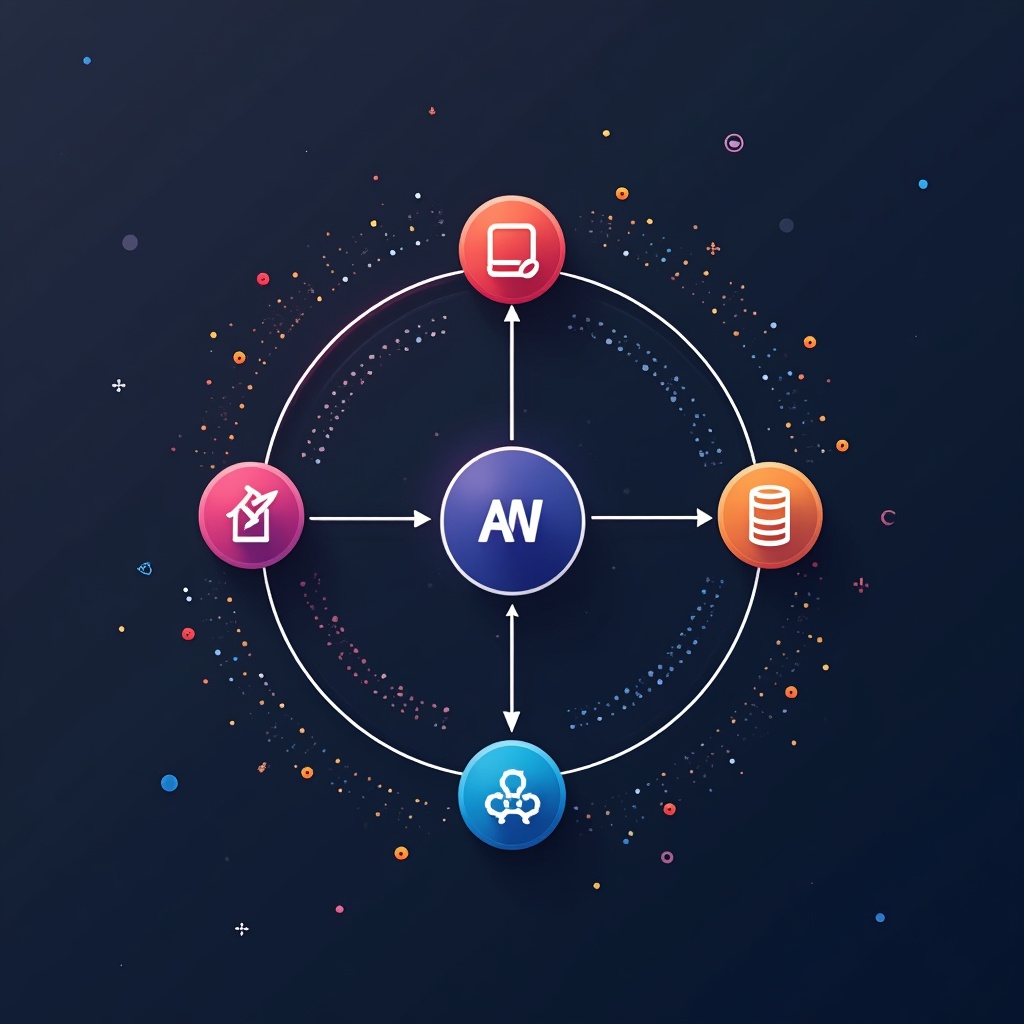

PyCharm for Automation: Features Worth Knowing includes intelligent code completion, integrated debugging tools, version control support, database management, and remote development capabilities that streamline building and maintaining automation scripts with significantly less manual configuration than generic editors.
Picture this: you’re three hours deep into debugging an automation script at 11 PM, squinting at nested loops and wondering why your web scraper keeps timing out. You’ve got four browser tabs open with Stack Overflow answers, two terminal windows running different test environments, and a growing sense that there has to be a better way to do this.
That’s where PyCharm for Automation: Features Worth Knowing becomes less about hype and more about sanity. Whether you’re automating data pipelines, building scheduled tasks, or orchestrating complex workflows, the right development environment doesn’t just save time—it prevents the kind of midnight debugging sessions that make you question your career choices.
Let’s break it down, feature by feature, so you can decide if PyCharm’s automation-focused tools are worth the investment (or if you’re perfectly happy with your current setup, which is also totally valid).
What Is PyCharm for Automation: Features Worth Knowing
PyCharm is JetBrains’ Python-focused IDE that comes in two flavors: Community (free) and Professional (paid). For automation developers specifically, it bundles tools that address common pain points—think integrated terminal access, smart code suggestions that actually understand your imports, and debugging features that don’t require a PhD to configure.
Unlike lightweight editors that rely heavily on extensions, PyCharm ships with most automation essentials pre-configured. This means less time hunting for the right plugin combination and more time actually building stuff. The Professional version adds database tools, remote interpreter support, and web framework integration—features that become crucial when your automation scripts need to interact with APIs, databases, or run on remote servers.
Core Automation Advantages
What sets PyCharm apart for automation work? Several features stand out:
- Intelligent code completion: Goes beyond basic autocomplete by understanding context, suggesting entire code blocks, and catching errors before you run anything
- Integrated debugging: Set breakpoints, inspect variables, and step through automation logic without switching windows
- Version control built-in: Git, SVN, and Mercurial support means tracking changes to scheduled jobs and deployment scripts stays organized
- Database navigator: Query and manage databases directly from the IDE—essential when automating data transformations
- Remote development: Write locally, execute on remote servers where your automation actually runs
Here’s the thing nobody tells you: these features aren’t magic, but they are time-multipliers. The first time you catch a type error in your cron job script before deploying it to production, you’ll understand the value proposition.
Why PyCharm Matters for Automation Workflows
Automation development has unique challenges. You’re not just writing code—you’re building systems that need to run unattended, handle errors gracefully, and often interact with multiple services simultaneously. A good IDE for this work should reduce cognitive load, not add to it.
PyCharm addresses three critical automation workflow bottlenecks:
Context Switching Reduction
Stop juggling terminal windows, database clients, API testing tools, and your code editor. PyCharm consolidates these into a single interface. When you’re debugging why your automation script failed at 3 AM, having everything in one place isn’t a luxury—it’s a productivity necessity.
The integrated terminal alone saves dozens of context switches per day. Run your script, check logs, commit changes, and query your database without leaving the IDE. Your brain stays in “automation mode” instead of constantly shifting gears.
Error Prevention Through Intelligence
Automation scripts often run in production environments where a single typo can cause cascading failures. PyCharm’s real-time error detection catches issues like undefined variables, incorrect function signatures, and import problems as you type.
Think of it like spell-check for code, except it also understands Python semantics and your project structure. The Professional version extends this intelligence to SQL queries, web frameworks, and even understands popular automation libraries like Selenium, Celery, and Apache Airflow.
Learn more in
Webhook Automation: Building Powerful Integration Workflow
.
Debugging Complex Workflows
Print statements are fine for simple scripts. But when you’re debugging a multi-threaded scraper or a scheduled job that only fails on Tuesdays, you need proper debugging tools. PyCharm’s debugger lets you pause execution, inspect variable states, and step through code line by line—even for asynchronous operations.
The visual debugger shows your entire call stack, local and global variables, and even lets you evaluate expressions on-the-fly. For complex automation logic with multiple conditional branches, this visibility is invaluable.
How PyCharm’s Automation Features Actually Work
Let’s get practical. Here’s how PyCharm’s most useful automation features function in real development scenarios:
Smart Code Completion in Action
Unlike basic autocomplete that just suggests method names, PyCharm analyzes your entire project, installed packages, and even common patterns in popular libraries. Start typing requests.get( and it suggests not just the method, but common parameter combinations with inline documentation.
For automation developers, this means less documentation diving. Working with the Pandas library for data automation? PyCharm suggests DataFrame methods with type hints and usage examples. The AI-powered completion (in recent versions) even predicts entire code blocks based on your previous patterns.
Integrated Debugging Walkthrough
Setting up debugging is straightforward—click the gutter next to any line number to add a breakpoint. When you run your script in debug mode, execution pauses at that line. Now the magic happens:
- Variables panel: Shows current values of all variables in scope
- Watches: Monitor specific expressions or conditions
- Evaluate expression: Test code snippets without modifying your script
- Step controls: Move through code line by line, step into functions, or skip to the next breakpoint
For debugging scheduled automation tasks, you can attach the debugger to running processes—incredibly useful when you need to troubleshoot a job that only fails in production environments. According to JetBrains’ official documentation, the debugger supports remote debugging configurations, letting you debug scripts running on remote servers or containers.
Database Tools for Data Automation
The Professional version includes a full database IDE within PyCharm. Connect to PostgreSQL, MySQL, SQLite, or virtually any database your automation scripts interact with. Write queries, visualize results, and export data—all without leaving your development environment.
Here’s where it gets particularly useful: when developing ETL (Extract, Transform, Load) automation scripts, you can test SQL queries directly in PyCharm, then copy the validated syntax into your Python code. The query console includes autocomplete for table names, column names, and even suggests JOIN conditions based on foreign key relationships.
Common Myths About PyCharm for Automation
Let’s address some misconceptions that keep developers from trying PyCharm (or cause them to give up too quickly):
Myth: “It’s Too Heavy for Simple Automation Scripts”
True, PyCharm uses more memory than VS Code or Sublime Text. But “heavy” is relative—modern laptops handle it fine, and the resource usage pays dividends in productivity. If you’re writing throwaway scripts, sure, use a lightweight editor. But for maintaining automation systems over time? The upfront resource cost becomes negligible.
Consider this: would you rather your IDE use 500MB of RAM and catch a critical bug, or use 100MB and deploy broken automation to production? The math changes when you factor in debugging time saved.
Myth: “The Learning Curve Isn’t Worth It”
PyCharm does have more features than simpler editors, which means more to learn. However, the learning curve isn’t as steep as people claim—especially for automation work, where you’ll primarily use a subset of features: debugging, code completion, and integrated terminal.
You don’t need to master every keyboard shortcut on day one. Start with the basics, and gradually adopt advanced features as you encounter specific workflow challenges. Most developers report feeling productive within their first week.
Myth: “VS Code with Extensions Does the Same Thing”
VS Code is excellent, and with the right extensions, it can approximate many PyCharm features. The key difference? Configuration time and integration depth. PyCharm’s features work together out of the box—the debugger understands your database connections, code completion knows about your remote interpreters, and the refactoring tools update imports across your entire project.
VS Code requires assembling this ecosystem manually. Some developers enjoy that customization; others prefer PyCharm’s “it just works” approach. Neither answer is wrong—it depends on how you like to work.
Real-World Automation Examples
Theory is nice, but let’s look at concrete scenarios where PyCharm’s features solve actual automation challenges:
Example 1: Web Scraping Automation
You’re building a scraper that monitors competitor pricing across multiple e-commerce sites. The script runs every hour via cron, stores results in PostgreSQL, and sends alerts when prices change significantly.
How PyCharm helps:
- Code completion suggests BeautifulSoup and Selenium methods as you type
- Database tools let you query and verify scraped data instantly
- The debugger helps you step through CSS selectors when a site’s HTML structure changes
- Remote interpreter support lets you test against the same Python version running on your production server
- Version control integration tracks changes when you update selectors for new site layouts
Example 2: Data Pipeline Orchestration
You’re maintaining an Apache Airflow DAG that extracts data from APIs, transforms it with Pandas, and loads it into a data warehouse. The pipeline runs nightly but occasionally fails on edge cases in the source data.
PyCharm advantages:
- Intelligent code completion understands Airflow operators and suggests correct parameter names
- Breakpoints in your transformation logic help identify why specific records cause failures
- SQL console validates your warehouse insertion queries before deployment
- Integrated terminal lets you test individual DAG tasks without triggering the full pipeline
- Code inspection highlights potential issues like missing error handling or unvalidated API responses
Example 3: Infrastructure Automation Scripts
You’ve written Python scripts that automate server provisioning, deployment, and configuration management. These scripts interact with cloud provider APIs, execute remote commands via SSH, and update inventory databases.
PyCharm’s workflow benefits:
- Remote development features let you edit and test scripts directly on your automation server
- Database navigator helps manage your infrastructure inventory database
- Integrated terminal provides quick access to test cloud CLI commands
- Code completion suggests correct SDK methods for AWS, Azure, or Google Cloud libraries
- Refactoring tools make it easy to reorganize your automation codebase as it grows
Choosing Between Community and Professional
The Community edition is free and includes core features: smart code completion, debugging, version control, and terminal integration. For many automation tasks, it’s entirely sufficient.
The Professional version adds:
- Database tools: Essential if your automation interacts with databases
- Web framework support: Useful for API automation or building admin interfaces for your scripts
- Remote development: Critical if your automation runs on servers or containers
- Scientific tools: Helpful for data science automation workflows
- Docker integration: Simplifies containerized automation development
Here’s a simple decision framework: if your automation scripts primarily process files locally and don’t interact with databases or run on remote servers, Community is fine. If you’re automating data pipelines, web services, or managing infrastructure—Professional’s features become worth the cost.
For reference, JetBrains offers a 30-day free trial of Professional, letting you evaluate whether the premium features match your workflow needs.
Practical Tips for Automation Developers
If you decide to try PyCharm for automation work, these tips will accelerate your productivity:
Configure Your Interpreter Correctly
Point PyCharm to the same Python interpreter (and virtual environment) that your automation scripts use in production. This ensures code completion and error checking match your actual runtime environment. It takes two minutes to configure but prevents countless “works on my machine” situations.
Use Run Configurations
Instead of typing the same command-line arguments every time you test a script, save them as run configurations. For automation scripts that require specific environment variables, API keys, or command-line flags, this feature is a massive time-saver.
Master a Few Key Shortcuts
You don’t need to memorize 50 keyboard shortcuts, but learning these five will noticeably speed up your workflow:
- Ctrl+Space: Force code completion when you need suggestions
- Shift+F10: Run your current script instantly
- Ctrl+Shift+F10: Run the script under your cursor (great for testing multiple automation scripts)
- Alt+Shift+F10: Open run configuration menu
- Shift+Shift (double-tap): Search everywhere—files, classes, settings, everything
Enable Code Inspections
PyCharm’s code inspections catch potential bugs, style issues, and performance problems. For automation scripts that run unattended, these real-time warnings prevent many production issues. Take five minutes to review inspection settings and enable ones relevant to your work.
What’s Next?
Understanding PyCharm for Automation: Features Worth Knowing is just the starting point. The real learning happens when you apply these tools to your specific automation challenges. Start with the Community edition if you’re unsure, focus on mastering debugging and code completion first, then gradually explore advanced features as your needs evolve.
The “worth it” question ultimately depends on your workflow complexity and how much time you currently spend switching between tools, debugging production issues, or hunting for documentation. For simple scripts that run occasionally, a lightweight editor might suffice. For maintaining production automation systems, PyCharm’s integrated approach often pays for itself in time saved within the first month.
If you’re building more complex integration systems, you might also wanna explore
Webhook Automation: Building Powerful Integration Workflow
to see how these development tools fit into larger automation architectures.